Friday, October 7, 2022

Azure Logic Apps deployment using Pipelines

The current pipeline deployment example is based on a Standard Logic App.
I have Build and Release Pipeline.


 Build Pipeline

  1. Create a New Pipeline and give it a name.


  2. Specify Source, Team Project, Repository and default Branch.


  3. Specify Agent Job Name and Agent Pool.

  4. Add an Archive Files task to the Agent Job.
    Specify the following:
    Display name
    Root folder in the repository to archive (containing the Logic App code files)
    Archive type as Zip
    The archive filename to create.

    NB: Be sure to deselect the "Prepend root folder" checkbox.

  5. Add a Publish Build Artifacts task to the Agent Job.
    Specify the following:
    Display name
    Artifact name
    Path to Publish and Artifact Publish location should remain as shown below.


    Congrats, you have now setup your Build Pipeline.


    Release Pipeline

  6. Create new release pipeline.


  7. Add new Artifact.
    Select Source type as "Build"
    Specify Project.
    Select Source (From Build Pipeline)


  8. Add new Stage, then click on Tasks and select the newly created Stage
  9. Update Stage name.


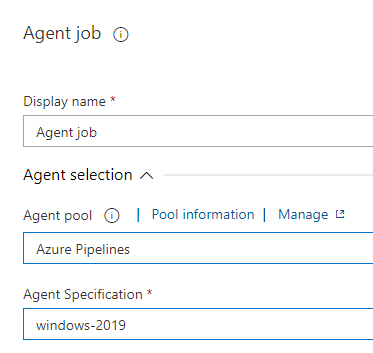
  10. Select Agent Job. 
    Update Display name, Agent pool and Agent specification.

  11. Add an Azure App Service deploy task to the Agent job.
    Update all fields as shown below:


    NB: Select deployment method - Zip Deploy

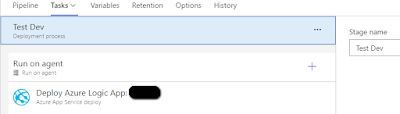
  12. The completed stage should look something like this.


  13. The completed release pipeline should look something like this.


    You may now run you build pipeline and thereafter your release pipeline.


Monday, May 26, 2014

THERE HAS BEEN AN ERROR WHILE LOADING THE FORM. A REQUIRED RESOURCE COULD NOT BE DOWNLOADED. TO TRY TO RESUME THE DOWNLOAD, REFRESH THE PAGE _ INFOPATH

I found this to be a strange permissions issue.
After going through loads of forums and blogs with people having the same or similar issues.
I tried all the recommended solutions but none of it worked for me.

The only time I did not receive this issue was when I logged into IE with the Admin User.
But this solution was not going to work for everyone.

As a solution / workaround I had to configure IIS,

  • the application pool identity being the Admin User
  • Update the Basic setting of the site to use "Application user (pass-through authentication)" as the Path Credentials
Steps:
  1. Open IIS
  2. Click on Application pools
  3. Right click on the application pool and select "Advanced Setting".

  4. Then select Identity.
  5. Select "Custom account" and set it to the Admin user.
  6. Select Ok.
  7. Update the Basic setting of the site. Select the site.
  8. Click "Basic Settings".
  9. Click "Connect as..."
  10. Select "Application user (pass-through authentication)"

Thursday, November 8, 2012

Remove Destination Folder from Upload File dialog

After upgrading from 2007 to SharePoint 2010 we noticed that the upload dialog now has a destination folder field to allow to select a destination folder in SharePoint.

The client requested this destination folder to be removed.

I found the following blog to be a great help, http://digsharepoint.blogspot.com/2011/06/destination-folder-field-in-site.html

I have included an extract from this blog as I have come across many blogs that reference a solution and the link no longer works or the web page / blog has been removed.

"A Google search on this led me to this very informative and helpful blog by Brian McCullough. It looks like that this behavior is due to the different values that are assigned to the vti_foldersubfolderitemcountproperty in the Folder's property bag for an upgraded object versus a new object.

For upgraded objects, this property’s value is set to 1.
For new objects, this property’s value is set to 0.

Also, the upgrade process sets the SPWeb.CustomUploadPage property for upgraded sites to a custom upload page titled uploadex.aspx, as opposed to upload.aspx which is the default page for file uploads. And this custom upload page contains the “Destination Folder” field.
... Brian provided a PowerShell script in his blog that loops through all Web sites that are contained within the site collection, including the top-level site and its subsites, and checks to see if the SPWeb.CustomUploadPage property is not equal to blank. If true, then it sets the SPWeb.CustomUploadPage property to blank. Doing so, removes the custom upload page (uploadex.aspx) from SPWeb, and reverts back to the default upload page (upload.aspx), which does not contain the “Destination Folder” field. 

Here is the PowerShell script to remove the custom upload page (containing the Destination Folder field):

foreach($webapp in get-spwebapplication)
{
foreach($site in $webapp.Sites)
{
foreach($web in $site.AllWebs)
{
if ($web.CustomUploadPage -ne "")
{

Out-File C:\Logs\WebsWithDestinationFolder_Log.txt -Append -InputObject $web.Url

$web.CustomUploadPage = ""
$web.Update()
}
}
}
}

"

SharePoint incoming email with msg attachment

I have created a document library configured to allow incoming emails in a SharePoint 2007 environment.
All email attachments I have sent in thus far has been added to the document library except for .msg files.

I came across this post which explains why:
http://social.technet.microsoft.com/Forums/en-US/sharepointadminlegacy/thread/f74ca4cb-44fe-4918-b206-b6616458a524

The following is an extract from this forum post:
"There is no fix for this. I have raised this issue with Microsoft and they said that it is a product Limitation.
What you can do is write a custom email event handler to strip the attachment from the orginal email.The .msg would come as an eml file."

Tuesday, May 22, 2012

Find Feature name from Feature ID

I received the following error:
The site collection requires feature {791fce91-700e-4219-b432-52d5c10874b2} to be activated.

I found this simple but helpful tool which provides the feature name from the ID to help identify which feature needs to be activated.

http://featurenamefromid.codeplex.com/

Makes the task a little bit easier.

Wednesday, April 25, 2012

The web application at http://xxx.xx.xx.xx could not be found


I was receiving the following error when trying to call a web service externally using the IP address.

The web application at http://xxx.xx.xx.xx could not be found. Verify that you have typed the URL correctly. If the URL should be serving existing content, the system administrator may need to add a new request URL mapping to the intended application.


Adding alternate access mappings for web application in Central Administration sorted out the issue.


Friday, April 13, 2012

Error when trying to create new Uri using value from SPListItem[“FileRef”]

I have taken over maintenance of a SharePoint solution recently deployed to SharePoint 2010 (which was previously running on SharePoint 2007).
It has a timer job that runs checks unprocessed items in a library, if it has more than 5 attachments, it proceeds to great a compressed file for these items. Within this procedure it uses the SPListItem[“FileRef”] to create a new Uri. When it does this I get the following error:

Message: Error attaching files: , Invalid URI: The format of the URI could not be determined. at System.Uri.CreateThis(String uri, Boolean dontEscape, UriKind uriKind) at …

According to the uses this was working before in SharePoint 2007. The reason it fails is because the SPListItem[“FileRef”] returns a relative url.
I have amended this to use the Encoded Abs Url, so that my code now looks like this:

lst.FileURL = item["ows_EncodedAbsUrl"].ToString();

This works.

Thursday, December 15, 2011

Tags (unknown member) : Invalid request

I received the error, "Tags (unknown member) : Invalid request.  ", within a PowerPoint add-in on the following line of code.

string tagName = Globals.ThisAddIn.Application.ActiveWindow.Selection.SlideRange.Tags.Name(i);

This line of code was in a for loop after getting the Tag.Count  and looping through the tags to find out if the tag already exists.

I then checked the available Tag Object Members.


.Name did exist.
I decided to try .Item instead to see if that would work but I could not find .Item on as a Member.


I then decided refactor my code to the following instead.

string tagValue = Globals.ThisAddIn.Application.ActiveWindow.Selection.SlideRange.Tags[tagName];

If the "tagValue" is an empty string then the Tag does not exist. 

If the tag does exist and the value is an empty string, I’m not too concerned as in my instance I will treat it as a tag that does not exist and overwrite the value of the tag.


Monday, October 17, 2011

SharePoint articles and white papers

SharePoint articles and white papers
I came across this site, http://www.susanhanley.com/white-papers.htm, that has some great SharePoint articles and White Papers, covering a variety of SharePoint functionality and topics.

Examples:
• Choice vs Lookup column
• Top 10 Considerations for SharePoint 2010 Governance Planning
• Everything you ever wanted to know about Taxonomies

And many more ….

Check it out.

Friday, October 7, 2011

The breakpoint will not currently be hit. No symbols have been loaded for this document

I received the error “The breakpoint will not currently be hit. No symbols have been loaded for this document” when debugging some SharePoint code. I was attaching to the w3wp.exe process.

The first time I received this error I followed the steps provided in Doug Butscher blog. This sorted out my issue.

A few weeks later I received the same error and this time the steps from Doug’s blog did not work.
With some help from a colleague I got it sorted with the following steps:

  • When debugging in Visual Studio, click on Debug > Attach to process…, click the select button next to “Attach to:”
  • Select “Debug these code types”, and then select “Managed (v2.0, v1.1, v1.0)” and “T-SQL” only.

  • Click “Ok”


Friday, September 30, 2011

The workflow template has specified no FormURN for this page

I created a workflow in SharePoint Designer 2010 which works in the development environment but not in the staging environment. I get the following error when trying to access the first task that gets created by the workflow. A similar error gets inserted into the logs as well


Most of the forums and blogs I came across when troubleshooting this issue referred to workflows created in SharePoint Designer and then imported into Visual Studio before deploying. They refer to removing the lines containing the  AssociationUrl, InstatiationUrl and ModificationUrl. 
I did not have any of these lines in my xml files so obviously that was not my issue.

On further troubleshooting I noticed some conflict between the existing content types (from a previous version of the workflow) and the new content types being created.
As a workaround to this issue, when adding the workflow I selected a new Task list instead of using the default task list.
I now no longer received the above error and the workflow is working correctly.

I will continue investigating the issue regarding the conflicting content types. I will update this blog once I know more but for now I have a working workflow.

Thursday, September 15, 2011

Convert SSIS 2008 package to 2005 package

Do not waste your time trying to convert a SSIS 2008 package to 2005.
Redo the package using SSIS 2005.

Thursday, August 11, 2011

Visual Studio 2008 hanging when opening designer view

I found myself needing to make some ‘quick’ form changes to an existing windows application. It ended up not being that quick due to Visual Studio hanging every time I opened the designer of a windows form.
After a few unsuccessful searches and trying and failing I came across this blog that did the trick.

Speed up the Visual Studio toolbox

All I needed to do was go to Tools->Options->Windows Forms Designer->General
Set AutoToolboxPopulate to False.


Tuesday, August 2, 2011

Failure in loading assembly (Event ID:6611)

I was receiving the following error in the event log:
Error: Failure in loading assembly: <assembly name>, Version=<version number>, Culture=….
 
The <version number> in the above error was for the previous version of the affected SharePoint solution.
Although the current version of the solution seemed to be working fine, the above error kept popping up in the event logs. I eventually found the culprit. It was a ‘SafeControl’ entry in the web.config file.

We removed the entry from the web.config file and since then there have been none of these errors logged.

Thursday, July 14, 2011

The template you have chosen is invalid or cannot be found


I received the error “The template you have chosen is invalid or cannot be found” when trying to create a new site from a custom site template.

Normally when this error occurs it is due to a dependent feature that has not been installed.
I came across this nifty tool, STP Inspector, that shows dependencies for a STP file on the site features and site collection features.

Run the tool, identify the missing features and install them.
Problem sorted.

Friday, July 8, 2011

SharePoint 2010 Feature Manager

For those of you who are familiar with or have used SharePoint 2007 Feature Manager, this tool will come in handy.
SharePoint 2010 Feature Manager is based on the SharePoint 2007 Feature Manager.

It allows you to activate, deactivate, install and uninstall features easily.

Check it out at http://spfm2010.codeplex.com/

Thursday, July 7, 2011

Capture task ID for approval task in SharePoint Designer 2010

Assigning the task ID to a field in the current item:
You can access the Task ID from the within the task behaviour. Click on "Change the behaviour of a single task"

The best place to set the field in the list / library would probably be in the "Before a Task is Assigned" "When a Task is Pending". You can add a "Set field in current item" action or if you wish to assign it to a workflow variable you can use the "Set Workflow Variable" action.

Tuesday, June 28, 2011

An error has occurred in <workflow name>

I was receiving an error in my SharePoint Designer 2010 workflow on an approval action.
The error read:
An error has occurred in <workflow name>
I know, very helpful.
There was not anything helpful in the logs either.

I spent an hour trying various things like:
  •  Removing task form fields
  •  Removing actions I have inserted in the single task behaviour as well as overall task process.
With no luck I finally decided to hard code the assigned to person.
IT WORKS!

After a little investigating I figure out that the lookup person / group I have assigned needs to be returned as “display name” instead of the default, string